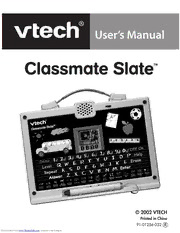
Table Of ContentUser’s Manual
Cl ssm te Sl te
a a a
™
© 2002 VTECH
Printed in China
91-01256-032
Downloaded from www.Manualslib.com manuals search engine
Dear Parents:
At VTech® we know that a child has the ability
to do great things. That’s why all of our
electronic learning products are uniquely de-
signed to develop a child’s mind and allow
them to learn to the best of their ability.
Whether it’s learning about letters, numbers,
geography or algebra, all VTech® learning
products incorporate advanced technologies
and extensive curriculum to encourage children
of all ages to reach their potential.
When it comes to providing interactive prod-
ucts that enlighten, entertain and develop minds,
at VTech® we see the potential in every child.
Downloaded from www.Manualslib.com manuals search engine
TABLE OF CONTENTS
INTRODUCTION..................................................................... 1
BATTERY INSTALLATION..................................................... 2
TROUBLESHOOTING........................................................... 3
VOLUME SWITCH .................................................................. 3
KEYBOARD DESCRIPTION............................................. 3-5
TO BEGIN PLAY ...................................................................... 5
DESCRIPTION OF ACTIVITIES ...................................... 6-9
SCORING SYSTEM..........................................................9-10
CARE AND MAINTENANCE ..............................................10
Downloaded from www.Manualslib.com manuals search engine
INTRODUCTION
Thank you for purchasing the VTech® Classmate Slate™ learning toy!
The VTech® Classmate Slate™ learning product is a fun, interactive
chalkboard that uses a touch-sensitive screen and a magic chalk stylus
to teach preschool fundamentals. Your child can select from 16 different
activities that teach critical skills such as letter order, letter matching,
early spelling, number order, counting, early addition and number
patterns. Classmate Slate™ is easy-to-use and gets your child excited
about going to school. Get pointed in the right direction and take it
anywhere for learning on-the-go!
Touch Screen
Level button
Magical On/Off Buttons
Chalk Pen
Activity Button
INCLUDED IN THIS PACKAGE
• 1 main unit
• 1 instruction manual
WARNING: All packing materials, such as tape, plastic sheets, wire
ties, and tags, are not part of this toy and should be
discarded for your children’s safety.
POWER SOURCE
Classmate Slate™ operates on 3 “AA” (UM-3/LR6) batteries.
1
Downloaded from www.Manualslib.com manuals search engine
BATTERY INSTALLATION
1. Make sure the unit is turned OFF.
2. Locate the battery cover behind the unit
and open it.
3. Insert 3 new ‘AA’ (UM-3/LR6) batteries,
as illustrated.
4. Close the battery cover.
NOTE: The use of alkaline batteries is recommended for maximum
performance.
If the unit suddenly stops working or the sound becomes weak, turn
the unit OFF for 15 seconds, then turn it back ON. If the problem
persists, weak batteries may be the cause. Please install a new set
of batteries and try again.
Battery Notice
• Install batteries correctly observing the polarity (+, –) signs to avoid
leakage.
• Do not use rechargeable batteries.
• Do not mix old and new batteries.
• Do not use batteries of different types.
• Remove batteries from equipment when the unit will not be in use
for a long time.
• Do not dispose of batteries in fire.
• Do not attempt to recharge ordinary batteries.
• The supply terminals are not to be short-circuited.
• Only batteries of the same and equivalent type as recommended
are to be used.
AUTOMATIC SHUT OFF
If there is no input into the VTech® Classmate Slate™ for about 8
minutes, the unit will automatically shut off to save power.
2
Downloaded from www.Manualslib.com manuals search engine
TROUBLESHOOTING
If the program stops working, follow these steps:
1. Turn the unit off.
2. Interrupt the power supply by removing the batteries.
3. Let the unit stand for a few minutes, then replace the batteries.
4. Turn the unit on. The unit will now be ready to play again.
If the pen isn’t working properly, follow these steps:
1. Make sure you aren’t playing in direct sunlight or other bright light
or heat.
2. Hold the pen upright at a 90-degree angle to the screen during play.
• If the problem persists, please call our Consumer Services Depart-
ment at 1-800-521-2010 in the U.S. or 1-800-267-7377 in Canada
and a service representative will be happy to help you.
VOLUME SWITCH
Adjust the volume by sliding the Volume Switch to
the right to raise the volume and to the left to lower
the volume.
KEYBOARD DESCRIPTION
do re mi fa so la ti do re pause
LOertdteerr LLMMeeaattttttcceehhrr MLeiststienrg ScWraomrdble NMuismsbinegr CCoouunnttiinngg NOurmdbeerr Adding TiTc oTeac MFaatscth MMMeeammtoocrrhyy Bookworm FFooMMlllleeooww LMibursaircy CrTeauntee a RTeicmeess
The Classmate Slate™ learning toy has a keyboard that includes the
alphabet and numbers as well as special function keys.
3
Downloaded from www.Manualslib.com manuals search engine
NUMBER/MUSIC NOTE KEYS
do re mi fa so la ti do re pause
In the number and math-related activities, these keys function as
number 1-0. In the music-related activities, use these keys to create
your own melodies.
LETTER KEYS
Use these keys to input answers for word-related activities. The keys
follow the same pattern as a standard computer keyboard.
ACTIVITY KEYS
LOertdteerr LLMMeeaattttttcceehhrr MLeiststienrg ScWraomrdble NMuismsbinegr CCoouunnttiinngg NOurmdbeerr Adding TiTc oTeac MFaatscth MMMeeammtoocrrhyy Bookworm FFooMMlllleeooww LMibursaircy CrTeauntee a RTeicmeess
These sixteen keys can be pressed at any time to start a new activity.
FUNCTION KEYS
Press this key to turn the unit on.
Press this key to turn the unit off. After a few
minutes with no input, the unit will automatically
shut itself off.
Press this key at any time to see some demo
animations.
4
Downloaded from www.Manualslib.com manuals search engine
While in an activity, press the LEVEL key to
select the level. Level 1 is the easier level.
LEVEL 2 is the most challenging level. There
are 2 levels in all the activities except Music
Library, Create-a-Tune, and Recess Time.
Press this key for extra help in answering the
question. In some activities, pressing this button
will remove some of the multiple choices, making
the question a little easier. This key is available
in all the activities except Tic Tac Toe, Music
Library, Fast Match and Recess Time.
Press this key to repeat the instruction or
question.
Use this key to delete the last thing typed.
Pressing this key will give you the correct answer
to a question.
Use this key to playback the melody in Create a Tune
and to playback the animation in Recess Time.
TO BEGIN PLAY
• Turn on your Classmate Slate™ learning toy by pressing the ON key.
• Press the activity keys to select the activity you wish to play. You
can also use the pen to click on the ( ) button on screen to select
an activity.
• Press the LEVEL key to change the level in any applicable activities.
All activities begin in level 1 unless you change the level.
• Use the pen on the screen and keyboard to play the activities. The
screen is very sensitive and the lightest touch will activate a
response. Please be careful not to press down too hard as it might
damage the screen.
5
Downloaded from www.Manualslib.com manuals search engine
DESCRIPTION OF ACTIVITIES
LETTER ORDER
Letter
Order
A sequence of letters in alphabetical order will appear
on screen with one letter missing. Multiple-choice
answers will appear on the bottom of the screen. Use
the pen to touch the letter that best fills in the answer,
or use the keyboard to answer.
LETTER MATCH Letter
Match
This activity tests your knowledge of upper and lowercase
letters. A letter will appear on screen, with multiple-choice
answers below. Use the pen to touch on the correspond-
ing capital or lowercase letter from the choices, or use
the keyboard to answer.
MISSING LETTER
Missing
Letter
A word will appear on screen and one of the letters will
disappear. Multiple-choice answers will appear on the
bottom of the screen. Use the pen to touch the correct
missing letter from the multiple choices or use the
keyboard to answer the question.
WORD SCRAMBLE Word
Scramble
A word will appear on screen for a short period of time.
Then all the letters will be scrambled and appear on the
bottom of the screen. Use the pen to touch the letters
in the correct order to unscramble the word or use the
keyboard to answer the question.
MISSING NUMBER Missing
Number
A sequence of numbers will appear on screen. Multiple-
choice answers will appear below. Use the pen to touch
the answer that best fills in the missing number or use
the keyboard to answer the question.
6
Downloaded from www.Manualslib.com manuals search engine
COUNTING
Counting
Several objects will appear on screen. Count them up
and use the keyboard to type the answer. If the HELP
key is pressed, two choices will appear on screen and
you can use the pen to touch the correct answer.
NUMBER ORDER Number
Order
Four numbers will appear on screen in order. Remember
the sequence of numbers before the faces covered them.
Watch carefully as the faces mix up the numbers. Use
the pen to click on the faces to reveal the numbers in
the correct order.
ADDING
Adding
An addition equation will appear on screen. Add the
numbers up and use the number keys on the keyboard
to input the answer.
TIC TAC TOE Tic Tac
Toe
Use the pen to play Tic Tac Toe against the computer.
Try to get three in a row to win the game!
FAST MATCH Fast
Match
At the top of the screen the target object will appear.
Different objects will flash on the bottom half of the
screen. Use the pen to touch the ones that match the
target object before they disappear.
MEMORY MATCH Memory
Match
Several matching objects will appear on screen. Remem-
ber where the pairs are before cards cover them up.
Use the pen to find the pairs hidden by the cards.
7
Downloaded from www.Manualslib.com manuals search engine