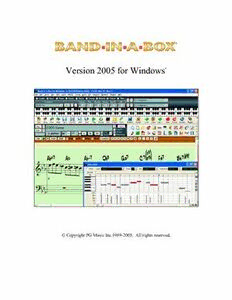
Table Of ContentVersion 2005 for Windows
®
Copyright PG Music Inc.1989-2005. All rights reserved.
PG Music Inc. License Agreement
CAREFULLY READ THE FOLLOWING TERMS AND CONDITIONS BEFORE COMPLETING THE INSTALLATION OF THIS
SOFTWARE. USAGE OF THE SOFTWARE INDICATES YOUR ACCEPTANCE OF THE FOLLOWING TERMS AND CONDITIONS.
LICENSE
A. The program may only be used on a single machine.
B. You may transfer the program and license to another party if the other party agrees to accept the terms of this Agreement. If you
transfer the program, you must either transfer all copies, whether in printed or machine readable form, to the same party, or, destroy
all copies not transferred. This includes all modifications and/or portions of the program merged into other programs.
C. You may receive the program in more than one media. Regardless of the type or size of media you receive, you may install or use the
media on a single machine.
D. The program (including any images, “applets,” photographs, animations, video, audio, music, and text incorporated into the program)
is owned by PG Music Inc. or its suppliers, and is protected by international copyright laws and international treaty provisions.
You may not use, copy, or transfer the program, or any copy, modification or merged portion of the program, in whole or in part, except as
expressly provided for in this license. If you transfer possession of any copy, modification or merged portion of the program to another party,
your license is automatically terminated.
LIMITATION OF REMEDIES
PG Music Inc.'s entire liability and your exclusive remedy shall be:
A. The replacement of any media not meeting PG Music Inc.'s “Limited Warranty,” which are returned to PG Music Inc., or an
authorized PG Music Inc. dealer, with a copy of your receipt.
B. If PG Music Inc. or the authorized dealer is unable to deliver replacement media which is free of defects in materials or workmanship,
you may terminate this agreement, and your money will be refunded.
In no event will PG Music Inc. be liable to you for any damages, including but not limited to lost profits, lost savings, or other incidental or
consequential damages arising out of the use or the inability to use such program, even if PG Music Inc. or an authorized PG Music Inc. dealer
has been advised of the possibility of such damages, or for any claim by any other party.
TRADEMARKS
Band-in-a-Box®, PG Music®, and PowerTracks Pro® are the registered trademarks of PG Music Inc. in the United States, Canada, and other
countries. Microsoft® and Windows® are either registered trademarks or trademarks of Microsoft Corporation in the United States and/or other
countries. Apple®, the Apple logo, Macintosh®, Mac®, Power Mac®, QuickTime® and True Type® are trademarks of Apple Computer, Inc.,
registered in the U.S. and other countries. IBM® is the registered trademark of International Business Machines Corporation. Other brands and
their products are trademarks or registered trademarks of their respective holders and should be noted as such.
PATENTS
Band-in-a-Box is protected under US Patent 5990407. The TC-Helicon Harmony feature in Band-in-a-Box is protected under US Patents
5567901, 5641926, 5986198, 34583, 296.80.173.9, PI9603819.5, 0368046, 0750776, 6,046,395, and patents pending.
Printed in Canada
2 PG Music Inc. License Agreement
Table of Contents
PG MUSIC INC. LICENSE AGREEMENT.............................................................................................................2
TABLE OF CONTENTS............................................................................................................................................3
CHAPTER 1: WELCOME TO BAND-IN-A-BOX!.................................................................................................6
WHAT IS BAND-IN-A-BOX?........................................................................................................................................6
®
INSTALLING BAND-IN-A-BOX FOR WINDOWS ...........................................................................................................7
CHAPTER 2: QUICKSTART..................................................................................................................................11
STEP 1 – TYPING IN THE CHORDS.............................................................................................................................11
STEP 2 – CHOOSING A STYLE....................................................................................................................................13
STEP 3 – PLAY YOUR SONG!......................................................................................................................................15
CHAPTER 3: BAND-IN-A-BOX VERSION 2005.................................................................................................17
NEW FEATURES IN BAND-IN-A-BOX 2005................................................................................................................17
QUICKSTART TUTORIAL FOR THE VERSION 2005 UPGRADE.....................................................................................22
CHAPTER 4: THE MAIN SCREEN.......................................................................................................................30
MAIN SCREEN OVERVIEW........................................................................................................................................30
STATUS BAR.............................................................................................................................................................32
SYNTH WINDOW / PIANO KEYBOARD.......................................................................................................................33
TITLE WINDOW........................................................................................................................................................38
CHORDSHEET AREA.................................................................................................................................................39
CHAPTER 5: GUIDED TOUR OF BAND-IN-A-BOX.........................................................................................41
LOADING AND PLAYING SONGS................................................................................................................................41
ADD A MELODY – MIDI AND/OR AUDIO..................................................................................................................45
ADD A SOLO - “THE SOLOIST”..................................................................................................................................47
VIEW AND PRINT NOTATION....................................................................................................................................48
PIANO ROLL WINDOW..............................................................................................................................................50
LEAD SHEET NOTATION WINDOW............................................................................................................................57
THE GUITAR WINDOW.............................................................................................................................................60
BIG PIANO WINDOW.................................................................................................................................................65
PLAY THE JUKEBOX..................................................................................................................................................65
IMPORT A MIDI FILE................................................................................................................................................67
AUTOMATIC SONGS - “THE MELODIST”...................................................................................................................68
MAKE YOUR OWN SONGS........................................................................................................................................69
SAVING YOUR WORK...............................................................................................................................................77
BURN YOUR OWN AUDIO-CD..................................................................................................................................78
CHAPTER 6: BAND-IN-A-BOX POWERGUIDE................................................................................................80
OPENING FILES.........................................................................................................................................................80
CHORD ENTRY.........................................................................................................................................................81
REPEATS AND ENDINGS............................................................................................................................................84
PLAYING/PAUSING/STOPPING SONGS.......................................................................................................................84
ADDITIONAL PATCHES.............................................................................................................................................87
CHANGING VOLUME, PANNING, REVERB, CHORUS, BANK.......................................................................................89
EDIT FUNCTIONS......................................................................................................................................................90
APPLYING STYLES....................................................................................................................................................93
BREAKS - RESTS, SHOTS, AND HELD CHORDS..........................................................................................................99
SONG SETTINGS DIALOG........................................................................................................................................101
Table of Contents 3
SAVING SONGS.......................................................................................................................................................102
THE JUKEBOX.........................................................................................................................................................105
CHAPTER 7: NOTATION AND PRINTING......................................................................................................107
EDITABLE NOTATION MODE..................................................................................................................................109
NOTE ROLL NOTATION MODE................................................................................................................................112
NOTATION WINDOW OPTIONS................................................................................................................................113
LEAD SHEET WINDOW...........................................................................................................................................120
LYRICS...................................................................................................................................................................126
PRINTING................................................................................................................................................................128
CHAPTER 8: AUTOMATIC MUSIC FEATURES.............................................................................................132
AUTOMATIC SONGS – “THE MELODIST”................................................................................................................132
AUTOMATIC SOLO GENERATION – “THE SOLOIST”................................................................................................135
AUTOMATIC GUITAR SOLOS – “THE GUITARIST”...................................................................................................139
AUTOMATIC EMBELLISHMENTS – “THE EMBELLISHER”.........................................................................................142
CHAPTER 9: MIDI RECORDING.......................................................................................................................147
RECORDING LIVE IN REAL TIME............................................................................................................................147
ENTERING NOTES MANUALLY...............................................................................................................................148
RECORDING WITH THE WIZARD FEATURE..............................................................................................................149
IMPORTING MIDI FILES..........................................................................................................................................149
EDITING THE MELODY TRACK................................................................................................................................151
CHAPTER 10: AUDIO RECORDING AND RENDERING...............................................................................154
AUDIO TRACK........................................................................................................................................................154
RECORD AUDIO......................................................................................................................................................154
PLAYING THE AUDIO FILE......................................................................................................................................158
EDIT THE AUDIO FILE.............................................................................................................................................158
TC-HELICON AUDIO HARMONIES..........................................................................................................................159
PITCH STYLES PRESET DETAILS (ONE PER VOICE)..................................................................................................163
APPLYING AUDIO PLUG-INS...................................................................................................................................164
RENDERING AUDIO FILES.......................................................................................................................................165
BURN YOUR OWN AUDIO-CD.................................................................................................................................169
CHAPTER 11: USER PROGRAMMABLE FUNCTIONS.................................................................................173
THE STYLEMAKER™.............................................................................................................................................173
THE HARMONY MAKER..........................................................................................................................................187
THE SOLOIST MAKER.............................................................................................................................................190
THE MELODIST MAKER..........................................................................................................................................193
THE GUITARIST MAKER.........................................................................................................................................196
CHAPTER 12: TUTORS AND WIZARDS..........................................................................................................199
VOCAL WIZARD.....................................................................................................................................................199
CHORD SUBSTITUTION WIZARD.............................................................................................................................201
CHORD BUILDER....................................................................................................................................................203
EAR TRAINING TUTOR............................................................................................................................................205
RHYTHM GUITAR CHORD TUTOR...........................................................................................................................209
MIDI FILE CHORD INTERPRETATION WIZARD.......................................................................................................211
MIDI FILE TO STYLE WIZARD................................................................................................................................216
CHAPTER 13: TOOLS AND UTILITIES............................................................................................................221
ROLAND VSC3 VIRTUAL SOUND CANVAS.............................................................................................................221
GUITAR TUNER.......................................................................................................................................................222
DYNAMIC 3D DRUM KIT WINDOW.........................................................................................................................222
4 Table of Contents
MIDI MONITOR......................................................................................................................................................225
SOUND BLASTER SUPPORT.....................................................................................................................................226
CHAPTER 14: REFERENCE................................................................................................................................227
BAND-IN-A-BOX MENU DESCRIPTIONS..................................................................................................................227
FILE MENU.............................................................................................................................................................227
EDIT MENU............................................................................................................................................................230
STYLES MENU........................................................................................................................................................235
OPT. MENU.............................................................................................................................................................237
PLAY MENU...........................................................................................................................................................266
LYRICS MENU........................................................................................................................................................268
MELODY MENU......................................................................................................................................................270
SOLOIST MENU.......................................................................................................................................................274
AUDIO MENU.........................................................................................................................................................277
GM MENU..............................................................................................................................................................280
HARMONY MENU...................................................................................................................................................283
NOT’N MENU.........................................................................................................................................................285
WINDOW MENU.....................................................................................................................................................286
HELP MENU............................................................................................................................................................288
KEYSTROKE COMMANDS - HOT KEYS....................................................................................................................290
CHORD LIST...........................................................................................................................................................293
BAND-IN-A-BOX FILES...........................................................................................................................................294
PG MUSIC INC.......................................................................................................................................................295
INDEX......................................................................................................................................................................296
REGISTRATION FORM.......................................................................................................................................305
5
Chapter 1: Welcome to Band-in-a-Box!
Congratulations on your purchase of Band-in-a-Box, the favorite of musicians, students, and
songwriters everywhere. Get ready to have fun!
What is Band-in-a-Box?
Band-in-a-Box is an intelligent automatic accompaniment
program for your multimedia computer. You can hear and
play along to many song ideas and go from “nothing” to
“something” in a very short period of time when you have
Band-in-a-Box as your “on demand” backup band.
Band-in-a-Box is so easy to use!
Just type in the chords to any song (like C or Fm7b5), pick a musical style from the hundreds
available, and click the [Play] button. Band-in-a-Box then automatically generates a full backing
arrangement of piano, bass, drums, guitar, and strings.
And that’s not all...
Band-in-a-Box is a powerful and creative music composition tool for exploring and developing
musical ideas with near-instantaneous feedback. Over the years many features have been added
to Band-in-a-Box - Notation, Piano Roll, Lyrics, Melody Tracks, Harmonization, the
StyleMaker, and StylePicker. The Soloist and the Melodist are popular “intelligent” features; the
Soloist generates professional quality solos over any chord progression, the Melodist can create
songs from scratch with Chords, Melodies, Intros, Solos, and even a Title!
The inclusion of digital audio features makes Band-in-a-Box the perfect tool for creating,
playing, and recording your music with MIDI, vocals, and acoustic instruments. Band-in-a-Box
for Windows® can also record an acoustic instrument or voice to add to the composition, with
processing through DirectX audio effects. Its built-in audio harmonies will turn your audio track
into multiple harmony parts or adjust its pitch by tracking the Band-in-a-Box Melody track.
Audio harmonies include vibrato and scooping effects for realistic styles.
You can print out your finished creation with repeats and endings, DC markings and codas, or
save it as a graphic file for web publication or to e-mail to a friend. And when you're ready to let
others hear your composition, you can burn it directly to an audio CD. Or save your composition
as a Windows Media File or in other compressed formats for a file that’s “Internet ready.”
Let’s get started!
This guide will have you making great music with Band-in-a-Box in a matter of minutes. We’ll
begin with the easy installation and setup procedure.
6 Chapter 1: Welcome to Band-in-a-Box!
Installing Band-in-a-Box for Windows®
Minimum System Requirements
- Windows® 9x/ME/NT/2000/XP.
- At least 16MB of available RAM for MIDI features.
- MIDI features require a 486DX processor or faster.
- Digital Audio features require additional RAM (at least 32MB recommended) and a Pentium-class (or faster)
system.
- 35MB to135MB available hard drive space. Add-on products and Digital Audio features require additional
space and memory.
- PC sound card or external MIDI device (synthesizer, sound module, etc.).
Installing the Program
- Use any of the following three methods to install the program files into the Band-in-a-Box directory. By default
this directory is C:\bb; you may choose another location.
Method 1 – Auto Run.
1. Insert the program CD-ROM into the CD drive.
2. In a few seconds, a browser window will open with a list of the CD contents.
3. Double click on SETUP.EXE to run the installation program.
Method 2 – My Computer.
1. Insert the program CD-ROM into the CD drive.
2. Access your CD-ROM drive from the Windows desktop by double clicking on the My Computer icon.
3. Then, double-click on the CD-ROM drive icon and double-click again on the SETUP.EXE program found in
the root or main folder of the CD-ROM.
Method 3 – Start Menu.
1. Insert the program CD-ROM into the CD drive.
2. From the Windows [Start] button select Run.
3. Type D:\SETUP in the “Open:” command line box. If your CD-ROM drive uses another drive letter type
the appropriate letter, for example E:\SETUP.
4. If you don’t know the drive letter for your CD-ROM you can use the [Browse…] button to find it.
SETUP.EXE will copy all of the program files to your Band-in-a-Box subdirectory (usually C:\bb) and install
icons to a Band-in-a-Box program group. Click on the Band-in-a-Box icon or launch bbw.exe to open the
program and configure the setup.
Setup Instructions
Band-in-a-Box uses the multimedia drivers for your MIDI interface and/or sound card that are supported by the
Windows operating system. To get sound playback you need to have a MIDI (and audio - for songs with digital
audio) driver installed.
To start using the program you will need to make sure that your MIDI interface, audio driver, and Windows sound
source is installed and configured.
Run the program by double-clicking the program icon. The first dialog you should encounter is a MIDI Output
Driver message similar to this one:
The program sets your initial
MIDI output driver automatically.
Note which driver has been
selected and press [OK] to
continue.
Chapter 1: Welcome to Band-in-a-Box! 7
The next dialog you encounter is the MIDI Driver Setup.
If the driver that was selected is not the best choice, simply make an alternate selection from the MIDI Driver
Setup dialog. Select a MIDI Output Driver to use for MIDI sound playback and optionally a MIDI Input Driver if
you are using an external MIDI controller keyboard or guitar. If the setup is panned to mono, the program offers to
change it to stereo.
Perhaps the easiest way to configure Band-in-a-Box is to press the [Run Driver
Wizard..] button in the Opt. | MIDI driver setup window.
The MIDI Output Driver Wizard dialog will take you step-by-step through the process of auditioning and
selecting an appropriate driver. This assumes that the appropriate Windows sound drivers are installed and correctly
configured.
8 Chapter 1: Welcome to Band-in-a-Box!
DirectX Instrument Synthesizer (DXi plug-in) Support
Software synthesizers allow Band-in-a-Box to play high quality sounds directly through your computer sound card,
without requiring any external MIDI hardware. Most new software synthesizers are released as “DXi plug-ins,” so
they will work in a standard way with many programs. Connecting Band-in-a-Box to the software synth as a plug-in
provides several advantages over the previous method of connecting as a MIDI driver. The plug-in allows Band-in-
a-Box to merge/synch in any existing audio file (vocals etc.) with the synth output. You can also directly render
your performance to a .WAV file using the DXi plug-in. Sampler-based synths allow you to assemble a huge,
customized library of instrument samples to use with Band-in-a-Box. Examples of popular DXi synths include the
RolandED VSC-DXi and Hyper Canvas.
To use DXi with Band-in-a-Box, you should think of the DXi as a type of “MIDI Out Driver.” As such, you visit
either the Opt. | MIDI driver setup or click on [Pref] [MIDI Driver] and select the “Use DXi Synth” checkbox.
When you do this, you can select the type of DXi to use (from a list of installed DXi, if any), and also will see a
panel display of the DXi that allows you to make settings directly for your DXi synth.
The DXi will convert the MIDI information to audio, which Band-in-a-Box will playback through your sound card
to audio speakers.
You can select DirectX DXi Software Synthesizers as the MIDI destination, and also apply DirectX Audio plug-ins
to the Band-in-a-Box audio track.
Check the Use DXi Synth checkbox to enable DXi playback.
Note: To use this option, you must have a polyphonic DXi synthesizer installed on your computer, such as the
Roland/Edirol VSC DXi. It will also be most convenient if your DXi synthesizer can use General MIDI or GM2 patches.
To select the DXi synthesizer, click the [DXi Synth Settings] button, which will open the DirectX Plugins window.
Chapter 1: Welcome to Band-in-a-Box! 9
The Synth Track tab edits Synthesizer settings, and the Audio Track tab edits Band-in-a-Box audio track DirectX
plug-ins. Select your desired DXi synth in the top plug-in Insert Slot 1.
To apply DirectX audio plug-ins to the synth, insert DX audio plug-ins to Insert Slots 2, 3, or 4. This can be useful
to add EQ, Reverb, Compression, or Peak Limiting plug-ins, if the “raw sound” of the synthesizer needs sweetening.
You can also choose the patch map (instrument list) that matches your synthesizer keyboard or sound module.
Original equipment sound cards or integrated sound chips are General MIDI (GM) compatible.
We have made preset drum/patch files for many
synthesizers and sound cards. If your synth is not listed
you should use the General MIDI Instrument Misc.
patch kit (default).
You can probably omit this step unless you're using an
old synth that is not General MIDI compatible. If your
non-GM synthesizer or sound card is not listed you can
easily make your own patch map in Opt. | Preferences |
Patch Map.
General MIDI 2 (GM2) Support
General MIDI 2 patches are supported for 128 additional instruments, the type of GM2 support is set in this dialog.
The choices are:
- General MIDI 2 support: If you're using the Roland VSC3, or a newer Sound Canvas (i.e. newer than
1999, or newer than the Roland SC88), then choose this GM2 support.
- Roland GS (older Modules): “Older” Sound Canvases (SC55/SC88) support GS, but not GM2. The good
news is that they have the same patches available, just at different locations. So if you choose this option,
Band-in-a-Box will find the patches at the “GS” locations instead of the “GM2” locations. If you have a
newer GS module like the SC8820, it supports both GM2 and GS - you should likely choose GM2.
- No GM2 support: Some sound cards don't have GM2 support yet; they just support the original 128
General MIDI sounds. Band-in-a-Box will use the closest instrument in these cases.
Now you’re ready to have fun with Band-in-a-Box!
10 Chapter 1: Welcome to Band-in-a-Box!