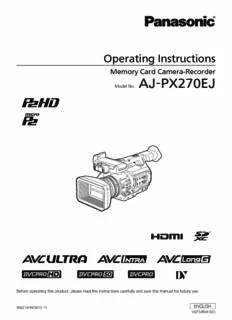
Table Of ContentOperating Instructions
Memory Card Camera-Recorder
AJ-PX270EJ
Model No.
Before operating this product, please read the instructions carefully and save this manual for future use.
ENGLISH
W0214HM5015 -YI
VQT5J85A-5(E)
Read this first!
Read this first!
indicates safety information.
WARNING: CAUTION:
• To reduce the risk of fire or electric shock, do Do not jar, swing, or shake the unit by its handle
not expose this equipment to rain or moisture. while the conversion lens or another accessory is
• To reduce the risk of fire or electric shock, keep attached.
this equipment away from all liquids. Use and Due to the added weight of the conversion lens,
store only in locations which are not exposed
any strong jolt to the handle may damage the unit
to the risk of dripping or splashing liquids, and
or result in personal injury.
do not place any liquid containers on top of the
equipment. CAUTION:
WARNING: In order to maintain adequate ventilation, do
not install or place this unit in a bookcase, built-
Always keep memory cards (optional accessory)
in cabinet or any other confined space. To
or accessories (microphone holder screws) out of
prevent risk of electric shock or fire hazard due to
the reach of babies and small children.
overheating, ensure that curtains and any other
CAUTION: materials do not obstruct the ventilation.
Do not remove panel covers by unscrewing them.
CAUTION:
To reduce the risk of electric shock, do not remove
Do not lift the unit by its handle while the tripod is
cover. No user serviceable parts inside. Refer
attached. When the tripod is attached, its weight
servicing to qualified service personnel.
will also affect the unit’s handle, possibly causing
CAUTION: the handle to break and hurting the user. To carry
the unit while the tripod is attached, take hold of
The mains plug of the power supply cord shall
the tripod.
remain readily operable.
The AC receptacle (mains socket outlet) shall be
CAUTION:
installed near the equipment and shall be easily
Excessive sound pressure from earphones and
accessible.
headphones can cause hearing loss.
To completely disconnect this equipment from the
AC mains, disconnect the power cord plug from CAUTION:
the AC receptacle.
Do not leave the unit in direct contact with the skin
CAUTION: for long periods of time when in use.
Low temperature burn injuries may be suffered if
Danger of explosion or fire if battery is incorrectly
the high temperature parts of this unit are in direct
replaced or mistreated.
contact with the skin for long periods of time.
Do not disassemble the battery or dispose of it in
When using the equipment for long periods of
fire.
time, make use of the tripod.
Do not store in temperatures over 60°C.
Do not expose the battery to excessive heat such CAUTION:
as sunshine, fire or the like.
Keep metal objects (such as necklaces and
For Battery Pack
hairpins) away from the battery.
Use specified charger. Short-circuiting may occur across the terminals,
Replace only with same or specified type. causing the battery to heat up, and you may
seriously burn yourself if you touch the battery in
CAUTION:
this state.
To reduce the risk of fire or electric shock and annoying
interference, use the recommended accessories only. CAUTION:
A coin type battery is installed inside of the unit.
Do not store the unit in temperatures over 60 °C.
Do not leave the unit in an automobile exposed to
direct sunlight for a long period of time with doors
and windows closed.
– 2 –
Read this first!
Caution for AC Mains Lead
FOR YOUR SAFETY PLEASE READ THE FOLLOWING TEXT CAREFULLY.
This product is equipped with 2 types of AC mains cable. One is for continental Europe, etc. and the other one
is only for U.K.
Appropriate mains cable must be used in each local area, since the other type of mains cable is not suitable.
TYPE C TYPE BF
(FOR CONTINENTAL EUROPE, ETC. (FOR U.K. ONLY)
Not to be used in the U.K.)
FOR U.K. ONLY
This appliance is supplied with a moulded three pin mains How to replace the fuse
plug for your safety and convenience. 1. Open the fuse compartment with a screwdriver.
A 5 amp fuse is fitted in this plug.
Should the fuse need to be replaced please ensure that
the replacement fuse has a rating of 5 amps and that it is
approved by ASTA or BSI to BS1362.
Check for the ASTA mark or the BSI mark on the Or
body of the fuse.
If the plug contains a removable fuse cover you must
2. Replace the fuse.
ensure that it is refitted when the fuse is replaced.
If you lose the fuse cover the plug must not be used until
Fuse
a replacement cover is obtained.
A replacement fuse cover can be purchased from your
local Panasonic Dealer. Fuse
Or
For Turkey
EEE Yönetmeliğine Uygundur.
EEE Complies with Directive of Turkey.
The rating plate is on the underside of the Camera Recorder, Battery Charger and AC Adaptor.
This equipment is in compliance with the essential requirements and other relevant provisions of
Directive 1999/5/EC.
Customers can download a copy of the original DoC for this product from our DoC server:
http://www.ptc.panasonic.de/
Manufactured by: Panasonic Corporation, Osaka, Japan
Importer’s name and address of pursuant to EU rules:
Panasonic Marketing Europe GmbH
Panasonic Testing Centre
Winsbergring 15, 22525 Hamburg, Germany
EU
– 3 –
Read this first!
r Batteries that may be used with this product (Correct as of January 2015)
Panasonic VW-VBD58 batteries may be used with this product.
Note regarding the Power Management function specified under COMMISSION REGULATION (EC) No
1275/2008 implementing Directive 2009/125/EC of the European Parliament and of the Council.
This device is designed and manufactured for use at a broadcasting station and/or in a similar environment.
This device is not equipped with a Power Management function or the Power Management function is set to OFF
as it will prevent the device from fulfilling its intended purpose for the reasons below.
1. If the device is a Studio Camera, a Weather Camera, a Mixer or other processor:
A Power Management function may cause the device to suddenly stop during recording or while On Air.
2. If the device is a Studio Monitor:
A Power Management function may cause video for the confirmation of whether a signal is normal, or whether
the signal has been lost, to be un-viewable.
3. If the device is a Camera Recorder:
A professional camera recorder must be able to start quickly at any time, but a Power Management function
will cause an increase in the time taken to resume from Stand-by mode.
It has been found that counterfeit battery packs which look very similar to the genuine product are made
available to purchase in some markets. Some of these battery packs are not adequately protected with internal
protection to meet the requirements of appropriate safety standards. There is a possibility that these battery
packs may lead to fire or explosion. Please be advised that we are not liable for any accident or failure occurring
as a result of use of a counterfeit battery pack. To ensure that safe products are used we would recommend that
a genuine Panasonic battery pack is used.
– 4 –
Read this first!
To remove the battery
Main Power Battery (Lithium ion Battery)
(Refer to page 26 for the detail.)
Press the battery release button.
Battery release button
Back-up Battery (Lithium Battery)
• For the removal of the battery for disposal at the end of its service life, please consult your dealer.
Battery Charger / AC Adaptor
Disconnect the AC mains plug from the AC mains socket when not in use.
– 5 –
f SDXC logo is a trademark of SD-3C, LLC.
f HDMI, HDMI logo, and High-Definition Multimedia Interface are trademarks or registered trademarks of HDMI Licensing LLC in the United States and/
or other countries.
f MMC (Multi Media Card) is a registered trademark of Infineon Technologies AG.
f Microsoft® and Windows® are registered trademarks or trademarks of Microsoft Corporation in the United States and/or other countries.
f Screenshots are used according to Microsoft Corporation guidelines.
f Apple, Macintosh, Mac OS, QuickTime, iPad, and iPhone are trademarks or registered trademarks of Apple Inc. in the United States and/or other
countries.
f Java and all Java-based trademarks are trademarks or registered trademarks of Sun Microsystems, Inc. in the United States.
f All other names, company names, product names, etc., contained in this instruction manual are trademarks or registered trademarks of their
respective owners.
f This product is licensed under the AVC Patent Portfolio License. All other acts are not licensed except private use for personal and non-profit purposes
such as what are described below.
- To record video in compliance with the AVC standard (AVC Video)
- To play back AVC Video that was recorded by a consumer engaged in a personal and non-commercial activity
- To play back AVC Video that was obtained from a video provider licensed to provide the video
Visit the MPEG LA, LLC website (http://www.mpegla.com/) for details.
f Use of DCF Technologies under license from Multi-Format, Inc.
How to read this document
r Illustrations
f Illustrations of the camera, menu screens, and other items, may vary from the actual items.
r Conventions used in this manual
f Words and phrases in [ ] brackets indicate details and content displayed in the viewfinder or LCD monitor.
f Words and phrases in < > brackets indicate design text used on this camera, such as button names.
r Reference pages
f Reference pages in this document are indicated by (page 00).
r Terminology
f SD memory card, SDHC memory card, and SDXC memory card are referred to as “SD memory card”.
f A memory card with the “P2” logo such as AJ-P2E064FG memory card (optional) is referred to as a “P2 memory card”.
f A memory card with the “microP2” logo such as AJ-P2M032AG memory card (optional) is referred to as a “microP2 memory card”.
f P2 memory card and microP2 memory card are referred to only as “P2 card” unless distinguished otherwise.
f Media such as external hard disk drives (HDD) connected to USB are referred to as “storage devices”.
f Video that is created during a single recording operation is referred to as a “clip”.
– 6 –
Contents
Contents
Read this first! 2 Adjusting image quality 54
Detail function 54
Chapter 1 Overview 9 Skin tone function 54
RB gain control function 55
Before using the camera 10 Chroma setting function 55
Use of the camera on a system 12 Matrix function 55
Basic configuration devices 12 Color correction function 56
Expanded configuration devices 12 Black control function 56
What you can do with this camera 13 Gamma function 56
Recording to the memory card 13 Knee function 56
Linking to external devices 13 High color function 57
Connecting to the network 14 White clip function 57
Setting the electronic shutter 58
Chapter 2 Description of Parts 15 Shutter mode 58
Adjusting with the <SEL/PUSH SET> dial button and <MODE/
Left side 16 MENU CANCEL> button 58
Right side 18 Flash band compensation (FBC) function 59
Front side, rear side 20 Setting the flash band compensation function 59
Top side 22 Variable frame rate (VFR) recording function 60
Native variable frame rate recording 60
Chapter 3 Preparation 24 Standard variable frame rate recording (pull-down recording) 60
Selecting audio input and adjusting recording levels 62
Power supply 25
Selecting audio input signals 62
Charging the battery 25
Using the built-in microphone 62
Attaching and removing the battery 26
Using the external microphone and audio device 62
Using the AC adaptor 26
Adjusting the recording level 63
Attaching and adjusting accessories 28
Displaying the audio level detailed 63
Adjusting the grip strap 28
Getting position information using the GPS 64
Attaching the shoulder strap 28
Special recording functions 65
Attaching the lens hood 28
Pre-recording 65
Attaching the eye cup 29
Interval recording 65
Attaching the front microphone 30
One-shot recording 66
Attaching a tripod 30
Loop recording 66
Turning on/off the power 31
One-clip recording 67
How to turn on the power 31
Simultaneous recording 68
How to turn off the power 31
Background recording 68
Setting the date/time of the internal clock 32
Hot swap recording 69
P2 card 33 Recording check function 70
Inserting a P2 card 33 Shot mark recording function 70
Removing a P2 card 34 Text memo recording function 70
Preventing accidental erasure 34 Convenient shooting functions 71
P2 card access LEDs and status of P2 cards 34 Low angle shooting 71
P2 card recording time 35 Scan reverse shooting 71
CPS (Content Protection System) 36 Zebra patterns display 71
How to handle data recorded on P2 cards 36 Displaying the center marker 71
Assigning functions to the USER buttons 37 Displaying the safety zone marker 71
Adjusting and setting the LCD monitor 39 Displaying frame marker 72
Using the LCD monitor 39 Checking and displaying the shooting status 72
Adjusting the LCD monitor 39 Changing image size 72
Mirror shooting 39 Image stabilization function 72
Highlighting the outlines of images 39 Dynamic range stretcher function 72
Adjusting and setting the viewfinder 40 Backlight compensation 72
Using the viewfinder 40 Color bars 72
Adjusting the viewfinder 40 Time stamp function 72
Highlighting the outlines of images 40 Deleting last clip function 73
Tally lamp 41 Waveform monitor function 73
Direct menu operation 73
Chapter 4 Shooting 42 Multi formats 74
Selecting recording signals 74
Basic procedures 43 System modes and recording functions 74
Preparation 43 List of recording settings and recording functions 79
Shooting 43 Selecting video output 80
Selecting the resolution, codec, and video format for recording 44 Recording/playback and output format list 81
Adjustable settings when shooting 46 Dual codec recording 83
Iris 46 Dual codec recording setting 83
Gain 46 Recording the proxy data 83
Super gain 46 Recording to the SD memory card 84
Brightness adjustment 46 Checking the proxy data 84
Macro 46 Error displays about proxy data recordings 85
Focusing (manual focus) 46 Streaming function 87
Focus assist function 47 Setting the network connection 87
Area mode function 48 Setting the streaming function 87
Level gauge function 49 List of system modes and supported streaming output 87
Adjusting the white and black balance 50 List of streaming modes and resolution/frame rates 87
Adjusting the white balance 50 Handling setting data 89
Adjusting the black balance 51 Setting data file configuration 89
Using the zoom function 53 Handling SD memory cards 89
Setting the <ZOOM> switch 53 Performing operations on SD memory cards 90
Adjusting the zoom position 53 How to use user data 91
Zoom ring 53
– 7 –
Contents
How to use scene file data 91 Chapter 8 Connecting to External Devices 159
How to restore the scene file or menu setting status to the
factory settings 93 Connecting with headphones, remote control, or TV/
Saving to an SD memory card and loading saved data 93 monitor 160
Selection of external reference signal and generator lock Headphones 160
setting 94 Remote control 160
Locking the video signal to the external reference signal 94 TV/monitor 160
Setting the time data 95 Connection function via <USB2.0 DEVICE> or <USB3.0
Recording of time codes and user bits 95 HOST> terminal 162
User bits settings 99 Connecting to a computer in the USB device mode 162
How to input user bits 100 Connecting to external devices in USB host mode 162
Setting the time code 101 Connecting to the remote operation panel (AK-HRP200G) 170
Externally locking the time code 102 Switch function in remote control mode 170
Supplying the time code externally 103 Recording and playback operations in remote control mode 170
Connecting and setting the genlock and time code input/ Remote control unit connected to the camera 170
output 104 Connecting to P2 ROP application 172
Setting and displaying the counter 104 Switch functionality in remote control mode 172
Recording and playback operations in remote control mode 172
Chapter 5 Playback 105
Chapter 9 Network Connection 173
Basic procedures 106
Preparation 106 Network connection 174
Playback 106 Available functions 174
Thumbnail operations 107 Operating environment 174
Thumbnail operation overview 107 Preparing for connection 175
Thumbnail screen 107 For wireless LAN 175
Selecting thumbnails 109 For wired LAN 176
Setting thumbnail screen display 109 For 4G/LTE 176
Changing thumbnails 111 Network settings 177
Shot mark 111 Wireless LAN settings 177
Text memo 111 Wired LAN settings 179
Deleting clips 113
Network function 181
Restoring clips 113
P2 browser function settings and connection status check 181
Reconnecting incomplete clips 113
Setting the P2 playlist edit function 181
Copying clips 113
Setting for connection with P2 ROP application 182
Setting clip metadata 114
Setting for connection with Remote Operation Panel
Formatting a P2 card 116
(AK-HRP200G) 183
Formatting SD memory cards 116
Using FTP client function 184
Properties 117
FTP client function setting 184
Chapter 6 Menu Operations 122 FTP server folder list (FTP explorer screen) 185
Deleting clips on the FTP server 186
Setting menu structure 123 Viewing information of clips on FTP server 187
Menu types and how to open them 123 Transferring from a P2 card to an FTP server (copy) 187
Main menu structure 123 Transferring from an SD card to an FTP server (export) 187
Setting menu display 124 Rec during upload function 189
Setting menu basic operations 124 Transferring recorded clips automatically (automatic transfer
Setting [USER MENU] 125 mode) 189
Setting menu initialization 125 Transferring selected clips automatically (manual selection
mode) 189
Menu list 127
Displaying the upload list 190
[SCENE FILE] 127
[SYSTEM MODE] 132
Chapter 10 Maintenance and Inspection 191
[USER SW] 133
[SW MODE] 134
Maintenance 192
[AUTO SW] 135
Charging the built-in battery 192
[RECORDING SETUP] 136
Frequently asked questions 193
[CLIP] 138
Power supply 193
[AUDIO SETUP] 140
Battery 193
[OUTPUT SEL] 141
Shooting 193
[NETWORK SETUP] 142
Editing 193
[DISPLAY SETUP] 144
Playback 193
[CARD FUNCTIONS] 146
Others 194
[OTHER FUNCTIONS] 147
Warning system 195
[MAINTENANCE] 147
Cases indicated by error codes 195
[DIAGNOSTIC] 147
Cases indicated by error messages 195
[USER MENU SEL] 148
Updating the camera firmware 199
[OPTION MENU] list 149
[AWB PRE CONTROL] 149 Cleaning and storing 200
[CAM REMOTE ADJ.] 149 Cleaning the camera recorder 200
[ENG SECURITY] 149 Cautions when storing the camera recorder 200
Chapter 7 Display 150 Chapter 11 Specification 201
Screen status display 151 Specifications 202
Configuration of status display on screen 151 Dimensions 202
Selecting display items on screen 151 Specifications 202
Displaying screen 151 Index 207
Checking and displaying shooting status 155
Mode check display 157
– 8 –
Overview
Chapter 1
Before using the camera, read this chapter.
For accessories, refer to the leaflet supplied with the product.
Chapter 1 Overview — Before using the camera
Before using the camera
r When using this product during rain or snow or when at the beach, be careful that water does not get inside the camera recorder.
Water causes damage to the camera recorder and memory card. (Repair may be impossible)
r Keep the camera recorder away from devices (TVs, TV games, etc.) that produce magnetism.
f If you use the camera recorder on or near TVs, video and sound data may be distorted by electromagnetic waves.
f Strong magnetic fields produced by speakers and large motors may cause damage to recorded contents and may distort images.
f Electromagnetic waves emitted by microcomputers may have a harmful effect on the camera recorder and may corrupt video and sound data.
f The camera recorder may not operate properly if it receives harmful effects from devices that produce magnetism. If this happens, turn off the camera
recorder and either remove the battery or unplug the AC adaptor from the power outlet. Then, replace the battery or reconnect the AC adaptor. After
that, turn on the camera recorder.
r Do not use the camera recorder near radio transmitters or high-voltage devices.
If you use the camera recorder near radio transmitters or high-voltage devices, the recorded video and sound data may suffer harmful effects.
r When using the camera recorder at the beach, etc., be careful that sand and dust do not get inside the camera recorder.
Sand and dust may damage the camera recorder and memory card. (Be careful when inserting and removing the memory card)
r Battery charger and battery
f If the <CHARGE> lamp continues blinking even when the battery is at its optimal temperature, the battery or battery charger may be damaged.
Contact a dealer.
f If the battery is warm, it will take longer than usual to charge.
f If you use the battery charger near a radio, the radio sound may be distorted. Keep the battery and battery charger at least 1 m away from radios
when in use.
f Noise may be emitted when using the battery charger, but this is not a malfunction.
r When carrying the camera recorder, be careful not to drop it.
f Strong shocks will damage the camera recorder body and it may not operate properly.
f If you carry the camera recorder, use a grip strap or shoulder strap and handle it carefully.
r Do not apply insecticide or volatile materials to the camera recorder.
f If insecticide or volatile materials come into contact with the camera recorder, the camera recorder body may warp and the paint may come off.
f Do not allow the camera recorder to remain in contact with rubber or vinyl objects for a long period of time.
r After using the camera recorder, either remove the battery or disconnect the AC cable from the power outlet.
r Battery characteristics
The battery is a rechargeable lithium-ion battery. It produces electrical energy via an internal chemical reaction. This chemical reaction is easily
influenced by the surrounding temperature and humidity, so the effective usage time of the battery is reduced when the surrounding temperature is hot
or cold. When used in extremely low temperature environments, the effective usage time is approximately five minutes.
When the battery is in an extremely hot environment, its protective function will operate and the camera recorder cannot be used temporarily.
r After using the camera recorder, be sure to remove the battery.
Be sure to remove the battery from the camera recorder. (If the battery is left in the camera recorder, it will continue to consume a small amount of
electric current even when the power is turned off)
If the battery is left inside the camera recorder for a long time, it will over discharge and may become unusable even if it is recharged.
Do not remove the battery when the power is turned on.
Turn off the power and remove the battery after the operation lamp goes completely out.
r Take proper care of the battery terminal.
Do not allow dust or foreign objects on the battery terminal.
Also, if you drop the battery by mistake, make sure that the battery body and the terminal are not warped.
Inserting a deformed battery into the camera recorder or attaching it to the battery charger may cause damages on the camera recorder or battery
charger.
r Cautions when throwing memory cards away or transferring them to others
Formatting memory cards or deleting data using the functions of the camera or a computer will merely change the file management information: it will
not completely erase the data on the cards. When throwing these cards away or transferring them to others, either physically destroy them or use a
data deletion program for computers (commercially available) to completely erase the data. Users are responsible for managing the data stored in their
memory cards.
r LCD monitor and viewfinder
f If the same image or letters are allowed to be displayed on the LCD monitor for a long time, the image may be burned into the screen. It will return to
normal after leaving the camera recorder turned off for several hours.
f Condensation sometimes forms on the LCD panel of the LCD monitor in locations subject to extreme temperature differences. If this happens, wipe
with a soft, dry cloth.
f If the camera recorder is very cold, the LCD monitor will be slightly darker than normal immediately after the power is turned on. The screen will return
to its regular brightness when the temperature inside increases.
– 10 –
Description:To reduce the risk of fire or electric shock and annoying interference . f This product is licensed under the AVC Patent Portfolio License. All other . Dynamic range stretcher function. 72 . that produce magnetism. /: Select when using the stored value of the adjustment of the white balance.